

Script loading
Use Consent Pro's default non-async installation for automatic blocking. The runtime needs to initialize before resources it intercepts. Async loading is optional; choose it deliberately and use manual blocking for resources that must wait for consent.
For how consent management relates to site performance, see Performance & Privacy.
Overview
The runtime uses published tracker categories and associated resource targets to hold supported scripts and iframes until consent is available. It does not automatically cover every third-party request. Scan, import discoveries, review categories and targets, publish, then verify browser requests.
How It Works
- Discovery and review: scan the site, import discoveries and review categories and resource URLs.
- Publication: publish the reviewed configuration. A saved draft does not change visitors' configuration.
- Runtime matching: the early, non-async runtime holds supported matching resources until their categories are allowed. GTM, images and cookie-free resources have specific limitations.
How to use async
These steps describe an optional manual-blocking setup, not the recommended automatic-blocking workflow.
1. Enable Load Script Async
Go to Banners > Global Settings and enable Load Script Async, then click Save Changes.
.png)
2. Copy the updated script to your site
By default (async off), Consent Pro installs as two separate script tags — a small config script followed by the shared runtime script:
<script
  src="https://api.consentpro.com/v2/cdn/runtime/config/..."
  data-consentpro-script="config"
  data-consentpro-site-id="..."
></script>
<script
  src="https://api.consentpro.com/v2/cdn/runtime.js"
  data-consentpro-script="runtime"
  data-consentpro-site-id="..."
></script>
Enabling async replaces both of those tags with a single combined tag that includes the async attribute:
<script
  async
  src="https://api.consentpro.com/v2/cdn/runtime/..."
  data-consentpro-script="runtime"
  data-consentpro-site-id="..."
></script>
Snippets copied before this change carry finsweet="consentpro" and siteid instead. Those keep working and do not need to be replaced; a snippet copied now uses the data-consentpro-* pair.
You must update the script tag(s) on your published site for this change to take effect. Disabling async later works the same way in reverse: the one combined tag is replaced by the two split tags.
- Go to the Installation tab in Consent Pro
- Click the copy button to copy the updated script snippet
- Replace the existing Consent Pro script tag(s) where your site manages
<head>code:- Webflow — go to Site Settings > Custom Code and update the
<head>section - Web App or custom site — update the shared layout, template, or integration that renders the site
<head>
- Webflow — go to Site Settings > Custom Code and update the
- Publish your site to apply the change
WARNING
If you skip this step, the script(s) on your live site will still reflect the previous setting regardless of what's configured in the app.
3. Scan and complete setup in the app
Inspect scan findings, preview and approve their import, then review the saved tracker categories, metadata and resource targets. Publish the reviewed configuration when ready. A completed checklist or “You are all set” message does not establish complete discovery or blocking; verify requests in the browser.
.png)
4. Update scripts, iframes, and images manually
With async loading, explicitly mark each resource that must wait for consent. With the default non-async installation, use these changes when you choose manual control or automatic targeting cannot cover the resource. See the full manual blocking guide.
Scripts:
Set the type attribute to fs-consent and add fs-consent-categories with the appropriate category value.
Example:
<script type="fs-consent" fs-consent-categories="analytics" src="https://example.com/analytics.js"></script>When you do that, the scripts will look disabled. This is fine and expected.
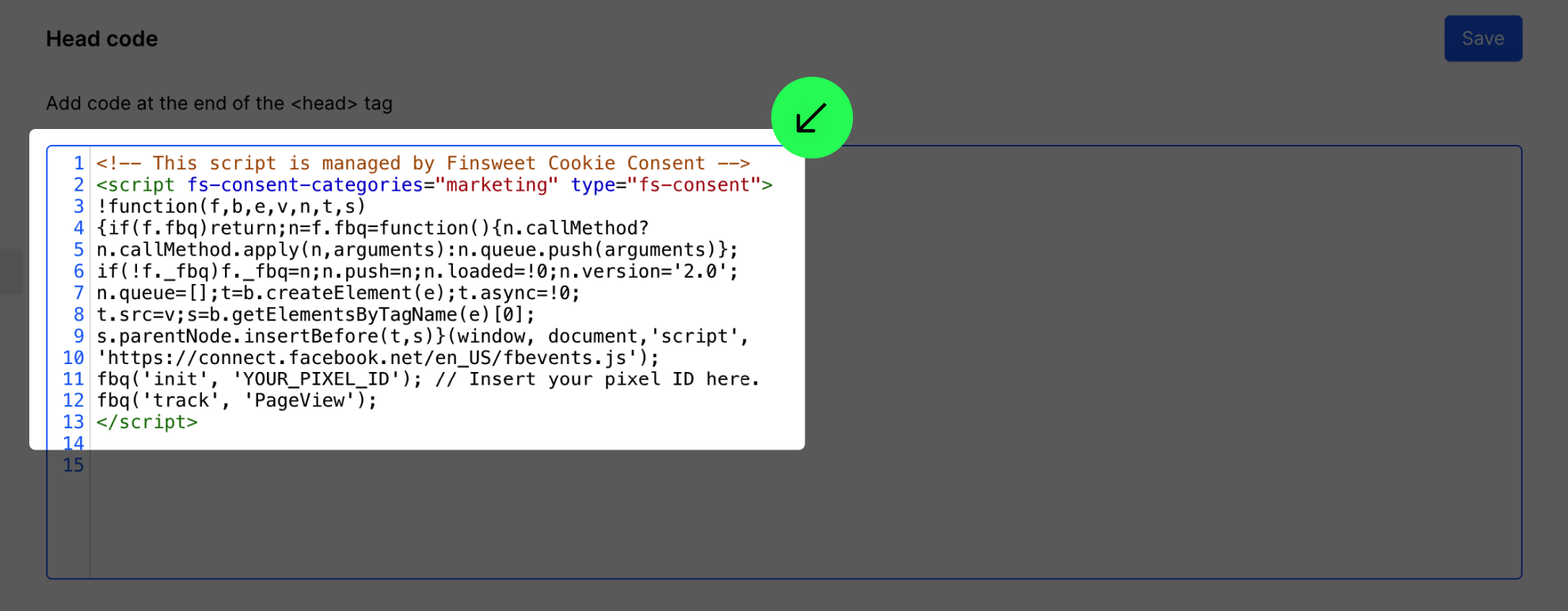
Iframes:
Replace the src attribute with fs-consent-src and add the fs-consent-categories attribute.
Example:
<iframe
  fs-consent-src="https://www.youtube.com/embed/dQw4w9WgXcQ"
  frameborder="0"
  fs-consent-categories="analytics"
  allowfullscreen=""
  title="Video embed"
></iframe>
Images:
Consent Pro can report third-party images that set cookies, such as tracking pixels or badges, so you can label them in the Manager. A live image src cannot be blocked — hold the URL in fs-consent-src with fs-consent-categories instead, and Consent Pro loads the image once consent is granted. See the dedicated Image Trackers guide for how detection works and a full walkthrough.
Category Reference
Set fs-consent-categories to the value that matches the type of cookies the element sets:
| Category | Value |
|---|---|
| Essential | essential |
| Analytics | analytics |
| Marketing | marketing |
| Personalization | personalization |
Elements marked only as essential are never blocked — they load immediately without requiring consent.
You can assign an element to multiple categories by separating values with a comma, the element will only load once the visitor has accepted all of the specified categories:
<script type="fs-consent" fs-consent-categories="analytics,marketing" src="https://example.com/script.js"></script>Callback Queue Pattern
Since the script loads asynchronously, use the callback queue pattern to ensure your code runs after Consent Pro is ready:
window.FinsweetConsentPro = window.FinsweetConsentPro || [];
window.FinsweetConsentPro.push([
  'consent',
  (FinsweetConsentPro) => {
    // Your code here, runs after Consent Pro initializes
  },
]);
Example: Load Google Fonts Based on Consent
Self-hosting fonts is preferred because it avoids sending a request to Google. If you deliberately retain hosted Google Fonts, check both the initial consent state and later changes. Put the following code in your site's JavaScript bundle, remove the original Google Fonts stylesheet link, and load the bundle after the Consent Pro installation.
window.FinsweetConsentPro = window.FinsweetConsentPro || [];
window.FinsweetConsentPro.push((api) => {
  const id = 'consentpro-google-fonts';
  const updateFont = () => {
    const existing = document.getElementById(id);
    if (!api.consents.personalization) {
      existing?.remove();
      return;
    }
    if (existing) return;
    const link = document.createElement('link');
    link.id = id;
    link.rel = 'stylesheet';
    link.href = 'https://fonts.googleapis.com/css2?family=Roboto&display=swap';
    document.head.appendChild(link);
  };
  updateFont();
  api.on('consent-updated', updateFont);
});
This example loads at most one stylesheet, reacts when personalization is accepted, and removes the stylesheet when consent is withdrawn. Removal cannot undo requests or data already sent, purge cached fonts or guarantee that an in-flight request stops. For an SPA, register this integration once in the shared application shell and remove the listener with api.off('consent-updated', updateFont) when that integration is disposed. Verify actual requests before a choice, after rejection, acceptance and withdrawal.
Best Practices
- After toggling async on or off, always copy the updated script from the Installation tab and replace the script tag(s) in your site
<head>— the number of tags changes (one for async, two for the default sync setup) and the live site will not reflect your setting until you update it - Use the callback queue pattern instead of relying on script load order
- Place the Consent Pro script tag(s) as early as possible in the
<head>for faster initialization - When using the default (sync) setup, keep the two script tags together and in the order shown in the Installation tab — the config script must come immediately before the runtime script
- Do not use
deferon the Consent Pro script tag(s) — they must execute before other scripts are evaluated - Never combine auto-blocking with async loading — use the synchronous (non-async) setup for auto-blocking
- Use the synchronous setup for supported automatic blocking, then verify actual requests before and after consent; script order alone does not prove that every third-party integration is blocked or that a site is legally compliant