

Debugger
The Consent Pro Debugger is a visual overlay that helps you test and verify your consent banner configuration on your Webflow site. It works on your staging site (*.webflow.io) and on your published custom domain.
Opening the Debugger
Launch the debugger from the Consent Pro app. When you have solved action items and none remain pending, a notification appears with a "Test it on live website" button. Clicking it opens the current page on your site's configured domain, staging or production, with the debugger active.
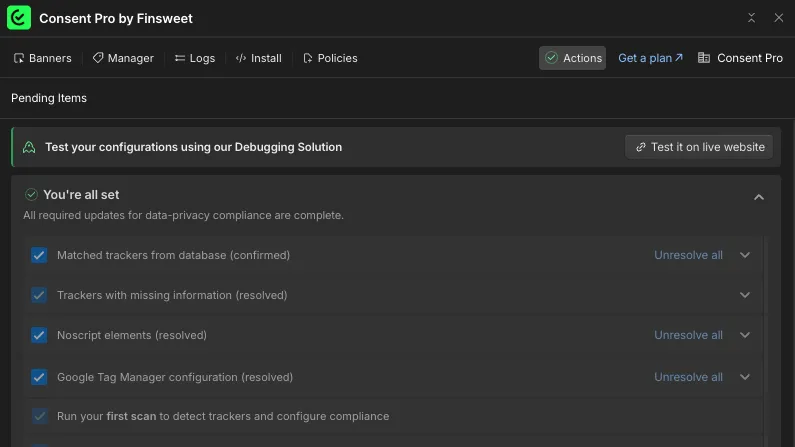
The link carries a secure debugger token that is valid for one hour and only for your site. If the link has expired, the page shows an invalid token message: go back to the Consent Pro app and click "Test it on live website" again to get a new link.
TIP
Adding ?consentpro-debugger=true to a URL no longer opens the debugger. Always start a session from the Consent Pro app.
What the Debugger shows
The debugger panel displays:
- Banner Setup — your active banner type and detected region.
- Initial Checks — whether the Consent Pro script loaded and the correct banner is displayed. If your project uses Google Fonts, a self-hosting check is also shown.
- Trackers before user interaction — which tracker categories are blocked or allowed before the visitor interacts with the banner.
- Trackers after user interaction — how tracker categories change after the visitor accepts, rejects, or customizes consent.
- Log Record — the stored consent record ID, date, and time (shown after the visitor interacts with the banner).
Simulating regions and banner types
If your project has multiple banner configurations (e.g., Opt In for EU, Opt Out for US), you can simulate different setups using the dropdowns in the Banner Setup card. This changes the URL parameters and reloads the page to show the selected configuration.
The following URL parameters are available:
| Parameter | Description |
|---|---|
consentpro-debugger | Debugger token added by the Consent Pro app; activates the overlay |
consentpro-region | Simulates a visitor region (e.g., EU, US, BR) |
consentpro-mode | Selects a specific banner instance by key |
consentpro-banner-type | Debugger-only preview by banner type (e.g., opt-in, opt-out); does not affect live visitors |
Switching consentpro-region to a value that differs from any previously stored consent automatically clears the consent cookie and re-shows the banner — you don't need to click Reset Banner just to test a new region.
Resetting consent
Click Reset Banner in the debugger footer to clear the consent cookie and remove simulation parameters (consentpro-region, consentpro-mode, and consentpro-banner-type). The debugger stays active (the consentpro-debugger token remains in the URL).
Stopping the debugger
Click Stop Debugging in the debugger footer to end the session for the tab: the simulation parameters and consentpro-debugger are removed from the URL, and the page reloads on its published configuration with no debugger. Click "Test it on live website" in the Consent Pro app to start a new session.