

Troubleshooting
This section covers common issues and their solutions when implementing Consent Pro on your Webflow website.
Common Issues
Content Security Policy (CSP) Errors
Problem: You see console errors like:
Refused to connect to 'https://api.consentpro.com/v2/license/verify' because it violates the following Content Security Policy directive: "connect-src..."Cause: Your website's Content Security Policy (CSP) doesn't allow connections to Consent Pro's verification servers.
Solution:
Identify where your CSP is configured:
- Webflow: Project Settings → Publishing → Custom Headers. View docs
- Server/Hosting Provider: Check your server configuration or hosting control panel
Add the required domains to your
connect-srcdirective:api.consentpro.com *.consentpro.comExample updated CSP:
connect-src 'self' api.consentpro.com *.consentpro.com [your other existing domains...]Save and republish your site to apply the changes.
Why this happens: Consent Pro needs to communicate with Consent Pro's servers for component verification and functionality. Without proper CSP configuration, browsers block these requests for security reasons.
Scanner can't access your staging site
Problem: The scan fails with an error that ConsentPro Scanner can't access your staging site (yoursite.webflow.io).
Cause: Webflow's Indexing settings are blocking the crawler. When staging indexing is off, Webflow publishes a robots.txt that disallows every user-agent — including ours.
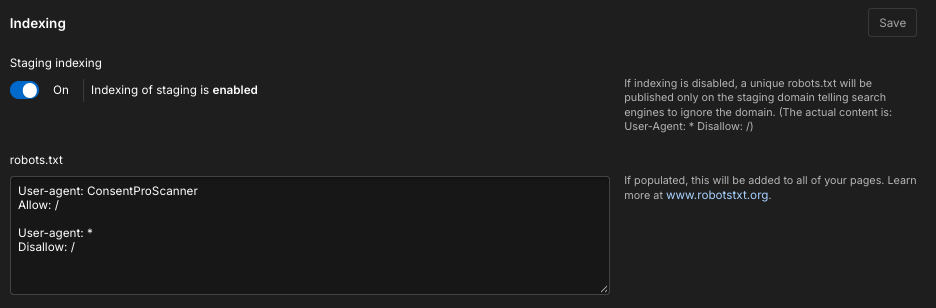
Solution: Allow ConsentPro Scanner on the SEO page, then publish.
Open Site settings → SEO, or go to
https://webflow.com/dashboard/sites/SHORTNAME/seoand replaceSHORTNAMEwith your site's short name (the same name as inSHORTNAME.webflow.io).Under Indexing, turn Staging indexing on.
In the robots.txt box, allow our scanner. This lets ConsentPro Scanner through while still blocking other crawlers:
User-agent: ConsentProScanner
Allow: /

User-agent: *
Disallow: /
- Click Save, then Publish.
- Rerun the scan.
You only set this once. After you save and publish, Webflow applies the same robots.txt to every published domain — staging and production.
Scans fail, stall, or come back incomplete
Problem: A scan fails, never finishes, or reports far fewer trackers than your site actually uses.
Cause: A security layer in front of your site is blocking or challenging our crawler, ConsentPro Scanner. This is most common with Cloudflare (Bot Fight Mode, Super Bot Fight Mode, or a WAF rule), but the same applies to any other protection layer — AWS WAF/CloudFront, Akamai, Fastly, Imperva, Sucuri, or a hosting provider's built-in bot protection. Because the scanner renders each page in a real browser engine, these systems classify its traffic as automated and stop it before it reaches your pages. This affects a Webflow site when its custom domain is proxied through Cloudflare or another CDN/WAF in front of Webflow hosting.
Solution: Pick whichever option fits your setup.
Option 1 — Allow our scanner (recommended)
Add ConsentProScanner to the allowed User Agents in your Cloudflare WAF settings. This lets our scanner through while keeping your site protected against everything else.
- In the Cloudflare dashboard, go to Security rules.
- Create a custom rule, for example
Allow ConsentPro Scanner. - Under When incoming requests match, use field User Agent, operator contains, value
ConsentProScanner. - Under Then take action, choose Skip, and select the bot protection features to bypass (Bot Fight Mode, Super Bot Fight Mode, or Managed Challenge, depending on what is enabled).
- Move the rule to the top of the list so it runs before any rule that would block the request.
On other platforms the concept is the same: create an allow or bypass rule that matches requests whose User-Agent header contains ConsentProScanner. The scanner also sends the header X-ConsentPro-Scanner: true, which you can match on instead if your platform supports custom header conditions.
Match on the token, not the full string
Match on the ConsentProScanner token rather than the complete User-Agent string — the full string changes over time as the underlying browser version updates.
Option 2 — Temporarily disable the protection
If you would rather not keep a permanent rule, turn the protection off, run the scan, then turn it back on:
- Disable bot protection (for example, Cloudflare's Bot Fight Mode) or switch your site to a permissive security level.
- Run the scan from the Consent Pro app and wait for it to finish.
- Re-enable the protection.
Scans run on demand or on a schedule. If you use scheduled scans, Option 1 is the better choice — otherwise each scheduled run will be blocked again.
If the error is that the scanner cannot access the site — especially on staging — start with Indexing and robots.txt.
For the full reference — how the scanner identifies itself, how it crawls, and cryptographic verification on Cloudflare Enterprise — see ConsentPro Scanner.
SEO tools report an inefficient cache policy (Semrush, Lighthouse, etc.)
Consent Pro is one or two small files (depending on whether async loading is enabled) and may appear once or twice in caching reports — that is expected. Many warnings usually come from other site assets. See Performance & Privacy.
Need More Help?
If you're still experiencing issues or have questions not covered here:
Check the Documentation:
Community Resources: