

How to Set Up Google Tag Manager
Follow this step-by-step guide to set up Google Tag Manager with Consent Pro.
Choose triggers and consent checks first
Choose Basic or Advanced for Google measurement before changing Google tags. If you have not decided yet, review both options first.
| Tag purpose | Recommended trigger | Consent checks |
|---|---|---|
| Consent Pro defaults | Consent Initialization — All Pages | Establish approved defaults before measurement |
| GA4 initialization — Basic | analytics-activated | Require analytics_storage |
| Google initialization — Advanced | Initialization — All Pages | Built-in consent behavior; no additional analytics_storage firing restriction |
| Consent-dependent analytics initialization | analytics-activated | Matching analytics consent checks |
| Consent-dependent marketing initialization | marketing-activated | Matching marketing consent checks |
| Consent-dependent personalization initialization | personalization-activated | Matching personalization consent checks |
| Purchase, lead, click or SPA navigation | Keep the original business-event trigger | Appropriate checks for the selected mode and actual purpose |
Category activation events fire once per page when the category becomes active, including remembered consent on returning visits. Choose the category from the tag's actual purpose. Reserve consent-updated for deliberately configured update handling: it also follows rejection and can occur repeatedly. Review an existing valid setup before replacing its triggers.
Activation does not stop already-loaded code after withdrawal. Test subsequent requests, consent persistence and any vendor shutdown behavior separately. See Consent-aware GTM troubleshooting.
1. Remove the <noscript> Tag from Google Tag Manager
Go to Site Settings > Custom Code and remove the Google Tag Manager <noscript> tag from the Footer code.
.png)
With scripting enabled, normal HTML <noscript> content is inactive. A tracking fallback can run when JavaScript and the CMP are disabled; remove tracking fallbacks while preserving harmless no-script content.
2. Import the Consent Pro Template to Google Tag Manager
- Download the Consent Pro GTM template:
- Open your Google Tag Manager container.
- Navigate to ’Templates’ in the left sidebar.
- In the ’Templates’ tab, click ’New’.
.png)
- Click the three dots icon (⋮) in the top-right corner and select ’Import’.
.png)
- Select the
Consent Pro - GTM Template.tplfile you just downloaded. The Template Editor will load with the Consent Pro configuration.
_(2).png)
- Agree to the Community Template Gallery Terms of Service, then click ’Save’ to add the template to your workspace.
.png)
- Close the Template Editor.
_(2).png)
Done ✅
3. Create the Consent Initialization Tag
- In the ’Tags’ section, click on ’New’.
.png)
- Click on ’Tag Configuration’
.png)
- Select ’Consent Pro - GTM Template’ from the list in the Custom section.
_(3).png)
- Click on “Triggering”.
.png)
- Select ’Consent Initialization - All Pages’. This is crucial as it ensures Consent Pro loads before any collection tags.
_(1).png)
- Name your tag (e.g., "Consent Pro Init") and click ’Save’.
_(1).png)
You have successfully added the Consent Init tag ✅
4. Configure Region-Specific Consent Settings
Region-specific consent settings allow you to define default consent states based on the user's geographic location. This is particularly useful for complying with regional privacy regulations such as GDPR in the European Union or CCPA in California.
By configuring these settings, you can ensure that users from specific regions have their consent preferences initialized appropriately before any tags fire, providing a compliant and seamless experience across different jurisdictions.
- In the ‘Tags’ tab, select the ‘Consent Pro Init’ tag you just added.
_(1).png)
- Click on ‘Tag Configuration’.
_(1).png)
- Click on the ’Region-Specific Consent Settings’ accordion to expand it.
.png)
- Click ‘Add Region Setting’ to create a new region configuration.
.png)
- Select the storage fields based on the examples below.
| Opt In | Opt Out | Don't Sell | Informational | |
|---|---|---|---|---|
| Analytics Storage | Denied | Granted | Granted | Granted |
| Ad Storage | Denied | Granted | Granted | Granted |
| Functionality Storage | Denied | Granted | Granted | Granted |
| Personalization Storage | Denied | Granted | Granted | Granted |
| Ad User Data | Denied | Granted | Granted | Granted |
| Ad Personalization | Denied | Granted | Granted | Granted |
If you have an ‘Opt-in banner’ added to Consent Pro,
Select ’Denied’ in all fields.
_(1).png)
If you have an ‘Opt-out’, ‘Do Not Sell’ or ‘Informational Banner’ added to Consent Pro,
Select ’Granted’ in all fields.
.png)
Why this matters
- Opt In (e.g., GDPR): Users must explicitly consent before any tracking. GTM defaults use
Deniedfor storage and relevant signals. A chosen Basic approach also needs firing gates; Advanced may send cookieless pings while denied. - Opt Out / Don't Sell / Informational: Tracking is allowed by default. GTM defaults should be
Grantedsince users can opt out later if they choose.
- Fill in ‘Regions’ with the region you selected when you created the banner.
Go to ‘Banners’ and click the copy button to copy the regions in the ‘Regions’ column.
Paste them into the ‘Regions’ field in Google Tag Manager.
_(1).png)
- Click ‘Add’ to finish the region settings.
_(1).png)
Note: If you have more than one banner created in Consent Pro, feel free to add more region settings. Here is an example of a setup with multiple banners.
.png)
- Optional: review whether you need advanced settings.
_(1).png)
- Wait for consent update: Default is
1000ms. This briefly delays Google consent processing while an update is expected. It does not wait indefinitely for a visitor, and does not block third-party tags or replace additional consent checks. - URL passthrough: Enable if you want to pass advertising click information (gclid, dclid, etc.) through URLs while waiting for consent. Helps preserve attribution data during consent flow.
- Ads data redaction: Enable if you want to remove advertising identifiers from requests when consent is denied. Routes traffic through cookieless domains for privacy compliance.
- Click 'Save' to finish the Regions setup.
.png)
Basic vs Advanced Consent Mode
Consent Pro supports both Basic and Advanced Google Consent Mode. Select the intended approach before changing Google tags. Steps 5–7 below describe consent-dependent initialization and additional checks for a chosen Basic approach. Advanced allows supported Google tags to send cookieless pings while storage is denied; use the dedicated guide for its separate Google-tag configuration. Preserve business-event triggers in either approach.
5. Create category activation triggers
Create only the category triggers needed by the approved tags:
- In Triggers, choose New.
- Name the trigger Analytics Activated, Marketing Activated or Personalization Activated.
- Choose Custom Event.
- Set the exact Event name to
analytics-activated,marketing-activatedorpersonalization-activated, respectively. Select All Custom Events for that exact name; leave regex matching off. - Save the trigger.
For GA4 initialization in Basic mode, use Analytics Activated and require analytics_storage. For the ordinary Google tag in Advanced mode, use Initialization — All Pages with built-in consent behavior instead. The Consent Pro defaults tag stays on Consent Initialization — All Pages in both modes.
6. Configure consent-aware initialization triggers
Use the matching category trigger for consent-dependent initialization only. For example, a marketing pixel's initialization uses Marketing Activated (marketing-activated) plus the marketing checks appropriate to its actual purpose.
- Open the initialization tag under Tags.
- Review its existing triggers, consent settings and firing frequency. An existing valid integration does not need automatic replacement.
- For an approved change, replace its page-load trigger with the matching category activation trigger. Leaving an ungated page-load trigger attached would still let the tag fire early.
- Add the matching consent checks in Step 7.
- Repeat only for approved initialization tags, then verify their behavior in Tag Assistant and the browser.
Keep purchase, lead, form-submit, click and SPA navigation triggers intact. They describe business events, not consent changes. Add appropriate checks for the selected mode and purpose. A blocked business event is not automatically replayed when the visitor later accepts.
consent-updated remains available for deliberately configured update handling with appropriate checks and firing frequency. It also follows rejection; do not use it as proof that a category was accepted. Category activation does not stop already-loaded code after withdrawal. See Consent-aware GTM troubleshooting.
7. Add the respective additional consent checks for your tags.
Require the consent types that match each blocked tag’s purpose. Native Google tags in Advanced mode use their built-in checks instead; adding additional checks changes that behavior.
- Ensure the website was scanned recently, or scan the website again.
Our solution will detect the scripts added to Google Tag Manager and help you categorize them. This is an important step to make sure the categories match in the app and in Google Tag Manager.
.png)
And also to show users the tracker details in the preferences panel.
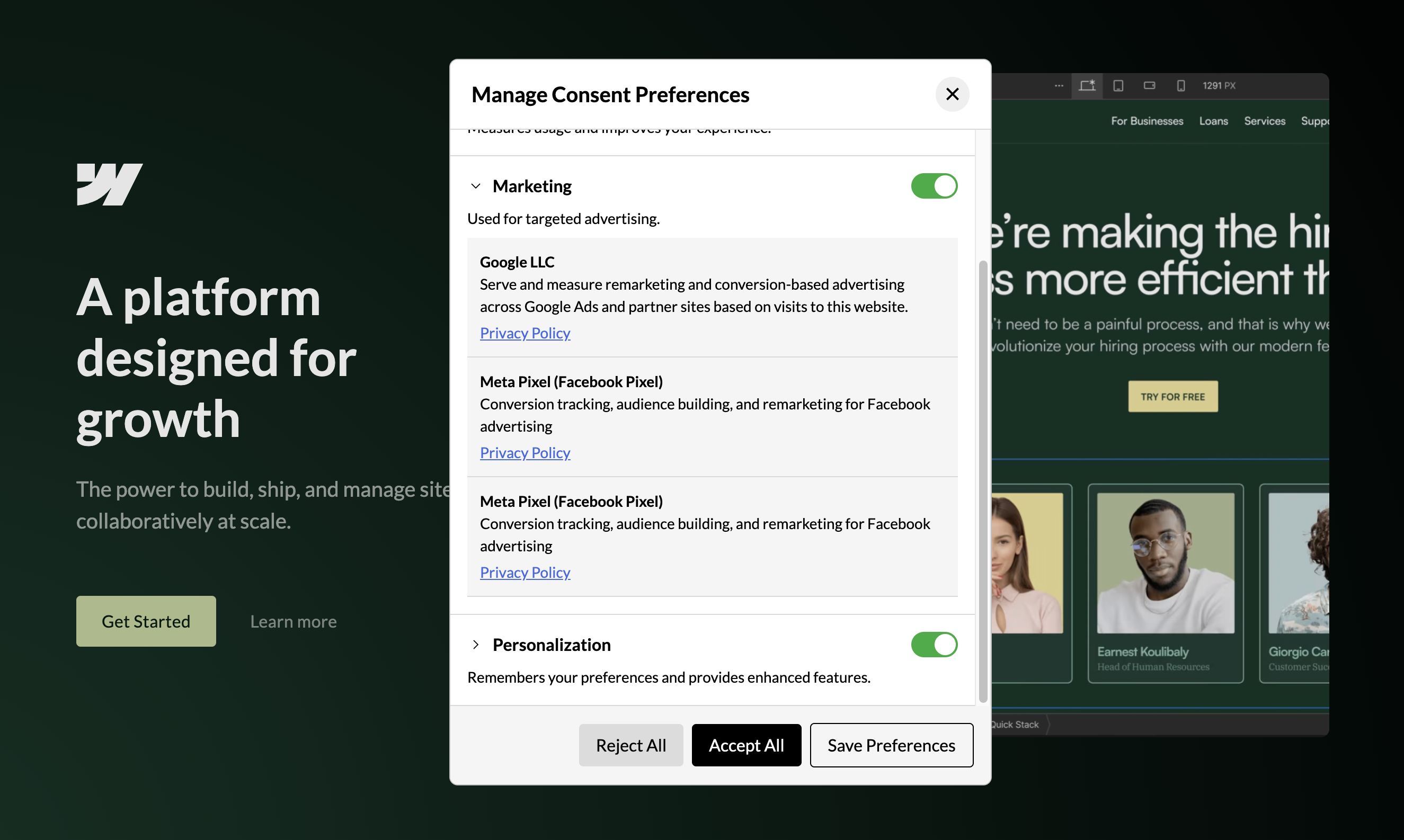
Note: Category activation events are the recommended starting point for consent-dependent initialization. Preserve business-event triggers. A scan cannot prove enforcement for arbitrary GTM tags; verify the published container in Tag Assistant.
⚠️ If your script uses document.write, make sure to enable “Support document.write” in the tag settings. Otherwise, the script may not execute correctly and may not be detected by Consent Pro.
- Select the tag you want to add the additional consent check. For this example, we are going to use the 'Facebook Pixel' tag again:
.png)
- Click on ‘Tag Configuration’.
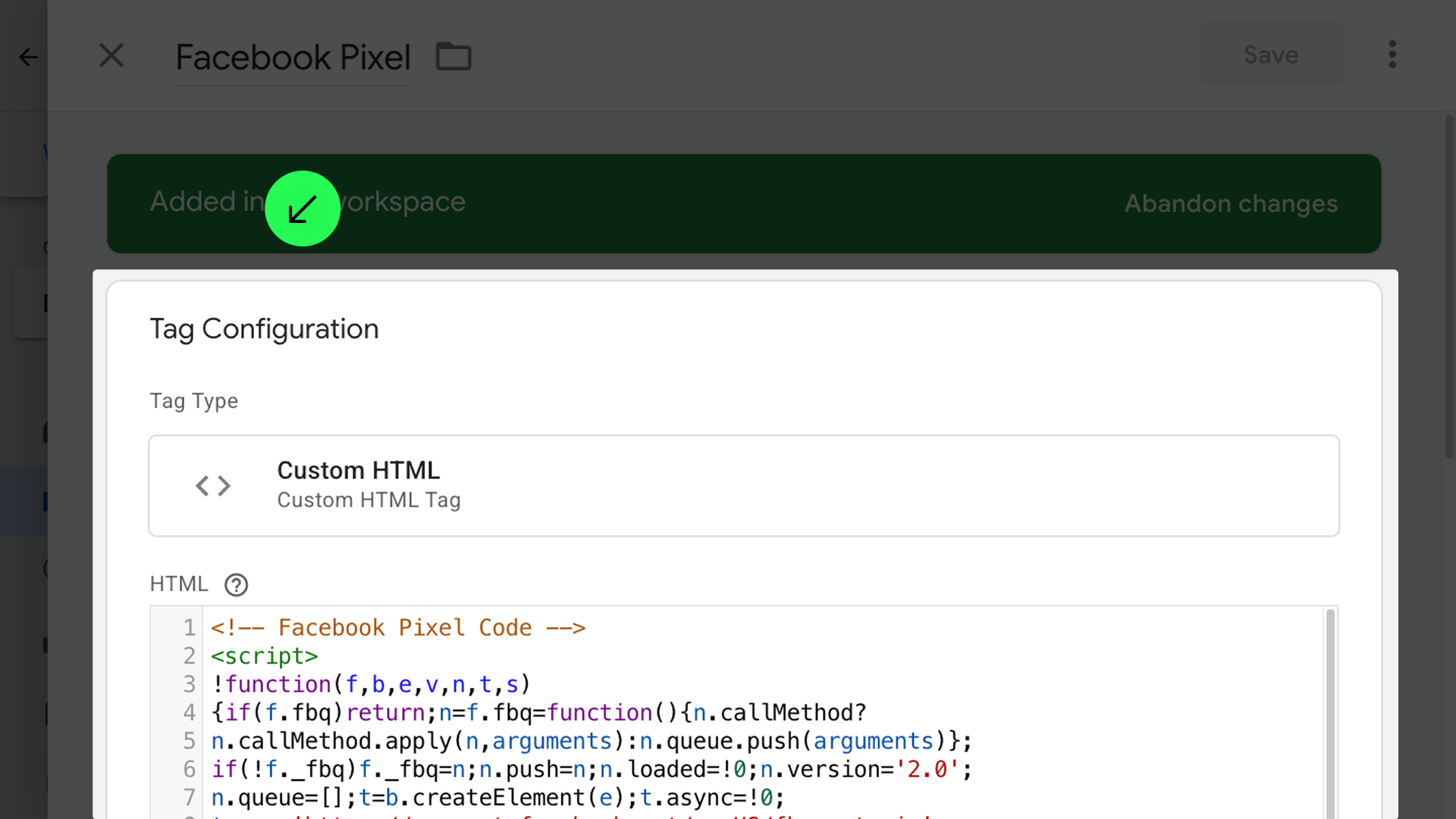
- Go to 'Advanced Settings' > 'Consent Settings' and select 'Require additional consent for tag to fire'.
.png)
- Choose the additional consents based on the category in the app. (check the visual reference below):
.png)
That means the Facebook Pixel script will only load when the user consents to the 'Marketing' category or clicks on 'Accept All'.
- Visual reference for mapping the Consent Pro categories with additional consents:
.png)
| Consent Pro category | Google consent signals |
|---|---|
| Analytics | analytics_storage |
| Marketing | ad_storage, ad_user_data, ad_personalization |
| Personalization | functionality_storage, personalization_storage |
| Essential | security_storage |
- Add applicable checks to consent-dependent tags, including conversion tags with their existing business-event triggers. GTM requires all selected checks to be granted. For supported Google tags in advanced mode, distinguish built-in behavior from additional firing restrictions.
Note: Some scripts or tags may set trackers with different categories, such as Gtag. In these cases, add multiple consent checks based on the categories in the app.
8. Submit and publish the changes in Google Tag Manager
- Click on 'Submit'.
.png)
- and 'Publish'.
.png)
9. Confirm that the Google Tag Manager setup is completed in the Consent Pro app
In the ‘Actions’ tab, check the checkbox in the Google Tag Manager message within the Consent Pro app.
.png)
Verify before completing setup
Test fresh rejection, analytics-only acceptance, marketing acceptance, returning visitors, purchase events, repeated updates, and withdrawal. Confirm consent defaults precede ordinary tags and inspect actual requests and cookies. See the detailed verification checklist.